Openclaw, the advanced AI automation tool, is gaining popularity for its ability to operate seamlessly and effectively. With the integration of Ollama, users can now run Openclaw locally, harnessing the full potential of its features and capabilities. This article provides a comprehensive guide on how to set up and configure Openclaw locally using Ollama.
Preparing Your System for Openclaw Installation
Before beginning the installation process, users should ensure their systems meet the requirements to run Openclaw effectively. The first prerequisite is to install the latest version of Ollama, which can be downloaded from the official website at ollama.com. This installation is crucial as it provides the necessary environment for Openclaw to operate optimally.
Once Ollama has been successfully installed, users should verify the installation by checking the version in the command line. The command should return the version number, confirming that the installation was successful. This step ensures that users are working with the latest features and security updates, making the setup process much smoother.
Step-by-Step Installation Process for Openclaw
With Ollama installed, users can proceed to download Openclaw from its official repository. After downloading, the files should be extracted to a convenient directory on the local machine. Users will then need to open a terminal window and navigate to the extracted folder using the command:
cd path/to/extracted/openclaw
In the terminal, execute the following script to install Openclaw:
bash install.sh
This command runs the installation script, downloading and configuring all necessary dependencies automatically. Following the on-screen prompts is essential to ensure that the installation proceeds smoothly and that Openclaw is set up properly on the local environment.
Configuring Openclaw for Effective Use

After Openclaw is successfully installed, the next important step is configuration. Users need to set up various parameters to ensure that Openclaw interacts correctly within its environment. This includes configuring local LLM settings and establishing any necessary permissions.
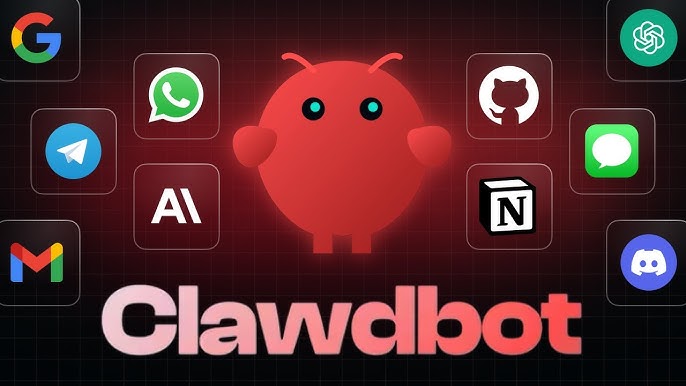
Additionally, users should consider integrating Openclaw with their preferred messaging platforms, such as Slack or Discord. This integration allows Openclaw to function as a responsive virtual assistant, capable of managing tasks and executing commands in real time. Setting up a bot in the chosen messaging service will require obtaining an API token and linking it to Openclaw’s configuration settings.
In conclusion, running Openclaw locally with Ollama is a straightforward process that enables users to tap into the full potential of AI automation. Following this guide not only allows quick installation and configuration but also empowers users to customize their settings for enhanced productivity. As Openclaw continues to evolve, its impact on the efficiency of task management and automation will only increase.