Openclaw, a robust AI automation platform that has evolved from its predecessors, has made significant strides in user accessibility. Setting up Openclaw on a Virtual Private Server (VPS) allows users to leverage its powerful capabilities without relying solely on local installations. This article serves as a straightforward guide to installing Openclaw on a VPS, ensuring users can take full advantage of its functionality.
Why Choose a VPS for Openclaw?
Using a VPS for Openclaw provides numerous benefits, the most notable being increased availability. By running Openclaw on a VPS, users can ensure that their AI agent operates 24/7 without the limitations of local system downtime. This constant accessibility is crucial for applications that require real-time responses or automation tasks that run continuously.
Moreover, VPS solutions often come with robust security features and scalability options, allowing users to expand their resources as their needs grow. This flexibility makes VPS an attractive option for developers and businesses looking to integrate Openclaw into their workflows effectively. The performance reliability and enhanced security measures offered by VPS can significantly improve the overall experience of using Openclaw.
Step-by-Step Installation Process on VPS

To set up Openclaw on a VPS, users should first choose a provider that offers reliable services and support. After creating an account, selecting an appropriate server configuration that meets system requirements for Openclaw is essential. For most users, a mid-range VPS with sufficient RAM and CPU power should suffice.
Once the server is set up, users need to connect to the VPS via Secure Shell (SSH). This can be done using a terminal application by entering the command:
ssh username@your-server-ip
After logging in, the installation of Openclaw can begin. Users can retrieve the installation script using the following command:
curl -fsSL https://openclaw.ai/install.sh | bash
This command downloads and executes the installation script, setting up the necessary components automatically. Following prompts during installation ensures that configurations are set correctly, preparing Openclaw for effective use.
Configuring Openclaw for Optimal Use
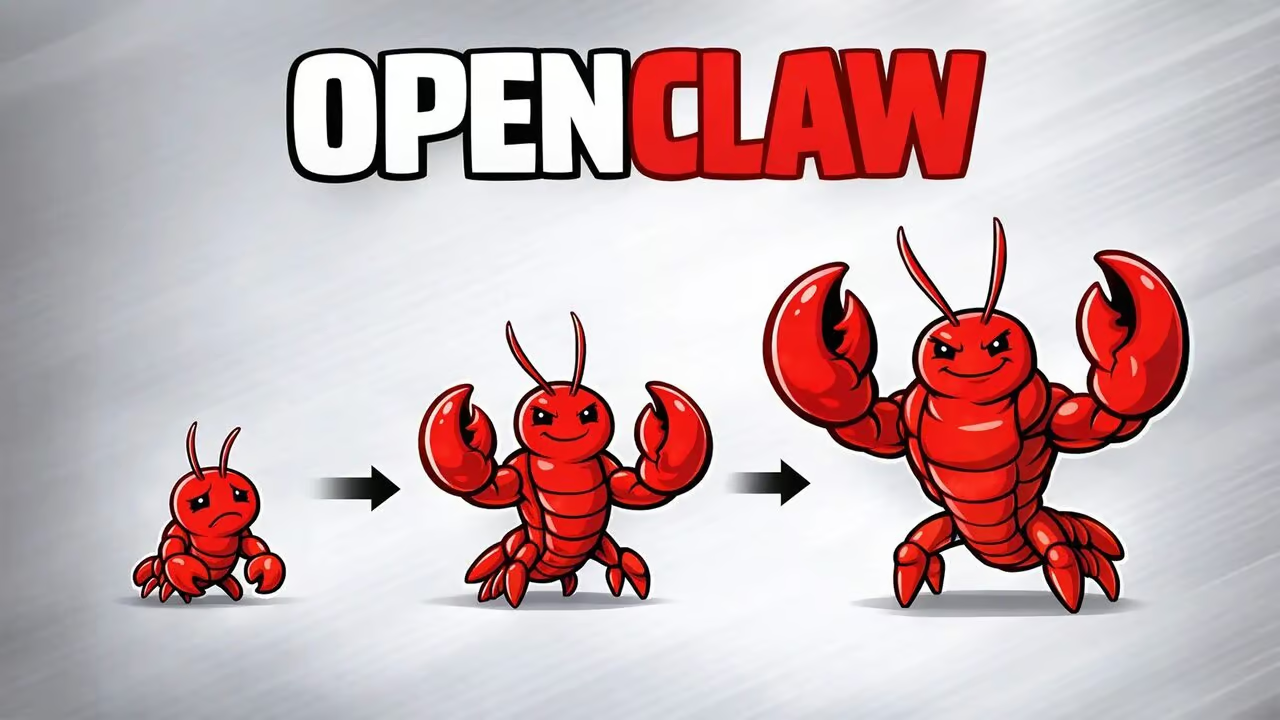
Once Openclaw is successfully installed on the VPS, configuring the tool is the next key step. This involves setting up user preferences and customizing features based on specific automation needs. Users can leverage the skill system in Openclaw to tailor functionalities to their requirements, enhancing the automation experience.
Additionally, integrating Openclaw with popular messaging applications like Telegram or Slack can further improve its usability. By creating a bot on these platforms and linking it to Openclaw through API keys, users can interact with their AI assistant in real-time. This integration allows for efficient task management and streamlined communication, maximizing Openclaw’s potential.
In conclusion, setting up Openclaw on a VPS offers users significant benefits, including enhanced accessibility and reliable performance. By following this guide, users can quickly install and configure Openclaw, making it ready for real-time AI automation tasks. As the platform evolves, its capability to facilitate efficient workflows will continue to position Openclaw as a critical tool for businesses and individuals alike.